Getting Started #
SELECT is an SQL client shaped like an IDE. Schema-aware completion, real-time linting, git-based team workspaces with granular DB permissions, local and proxified connections.
This guide takes you from download to your first query in about five minutes.

1. Download #
Current release: v0.0.1
See all releases.
Each platform ships as a .zip. The links below always resolve to the latest release; for a specific version swap latest/download for download/vX.Y.Z.
| Platform | Download |
|---|---|
| macOS (Apple Silicon) | selectDb-darwin-arm64.zip |
| macOS (Intel) | selectDb-darwin-amd64.zip |
| Windows (x64) | selectDb-windows-amd64.zip |
| Linux (x64) | selectDb-linux-amd64.zip |
2. Install #
macOS #
Unzip and drag SELECT to your Applications folder.
Windows #
Unzip and run SELECT.exe.
Linux #
Unzip and run the select binary.
3. Open a folder #
A workspace is a folder on your machine, so SELECT starts by asking for one.
Pick an empty folder to try it out, or a repository of .sql files you already
have. SELECT adds a single select.config.json naming the workspace and leaves
everything else alone; an empty folder also gets a small sample database to run
queries against.
See Workspace Folder for sharing one with a team.
4. Connect your first database #
SELECT supports PostgreSQL, MySQL, and SQLite.
-
Right-click a folder in the filesystem panel and choose New Database….
-
Pick your dialect and fill in the DSN:
Dialect DSN format PostgreSQL host=localhost port=5432 user=admin password=*** dbname=mydb sslmode=requireMySQL user:password@tcp(host:3306)/dbname?parseTime=trueSQLite file:./local.dbor/path/to/database.sqlite -
Click Test connection to check it. There is nothing to save: the form writes
datasource.config.jsonfor you once the connection is valid.

DSN fields support environment variables (
$VAR_NAME), resolved from your workspace.envfile at connection time. Keep credentials in.envso you can safely commit your connection config to git.
For full details, see Connecting a Database.
5. Run your first query #
-
Right-click your database folder and choose New file… to create a
.sqlfile. (In a hurry? Cmd+N opens a scratch tab you can save later.) -
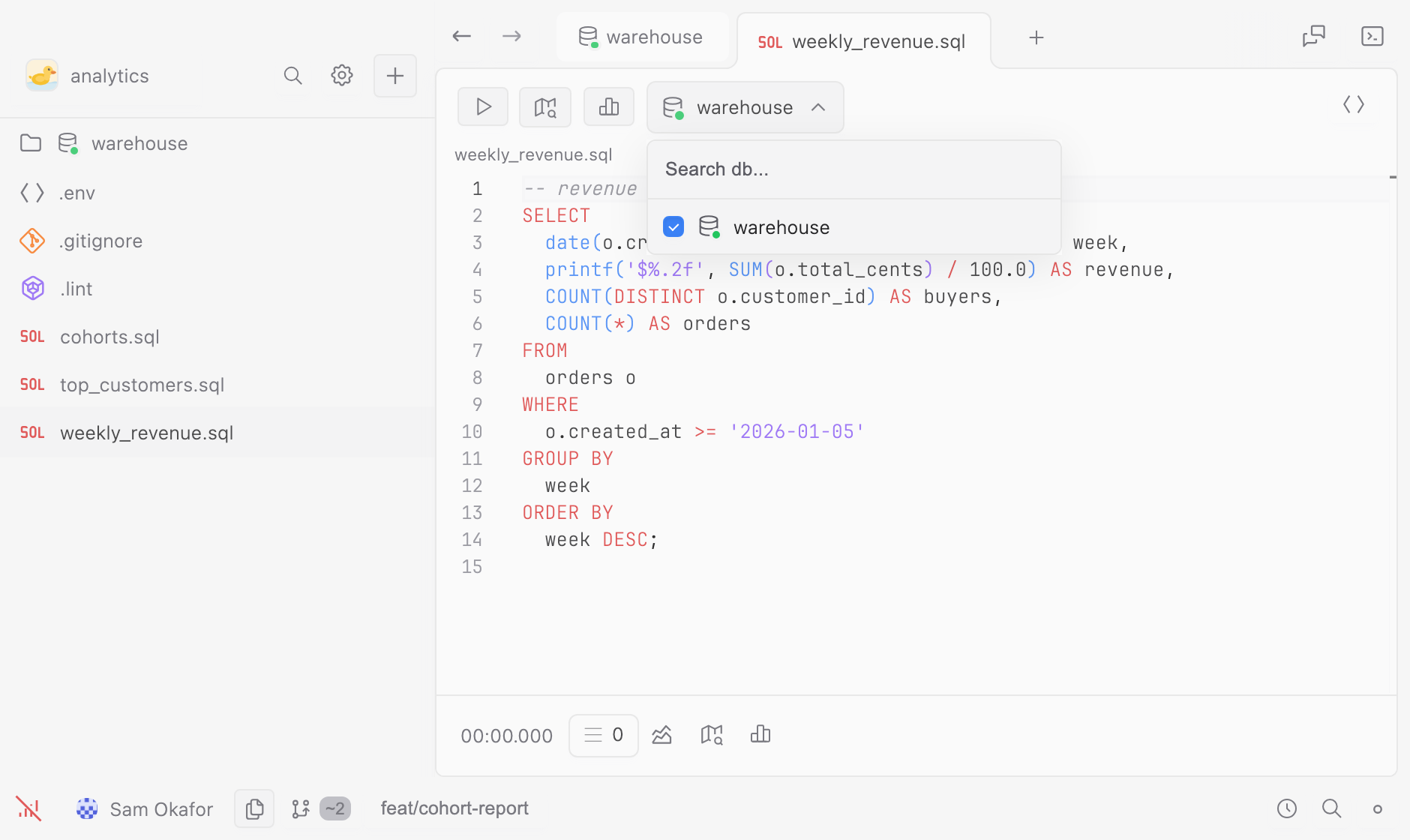
Press Cmd+Shift+D to open the database picker and associate the file with the connection you just created.
-
Start typing. Completion comes from the schema SELECT just read off your database, so after
FROMyou get your own tables, and after a table you get its columns with their types. Misspell one and the linter marks it before you run anything:SELECT * FROM your_table LIMIT 10; -
Press Cmd+Enter to run. Results appear in a table below the editor.
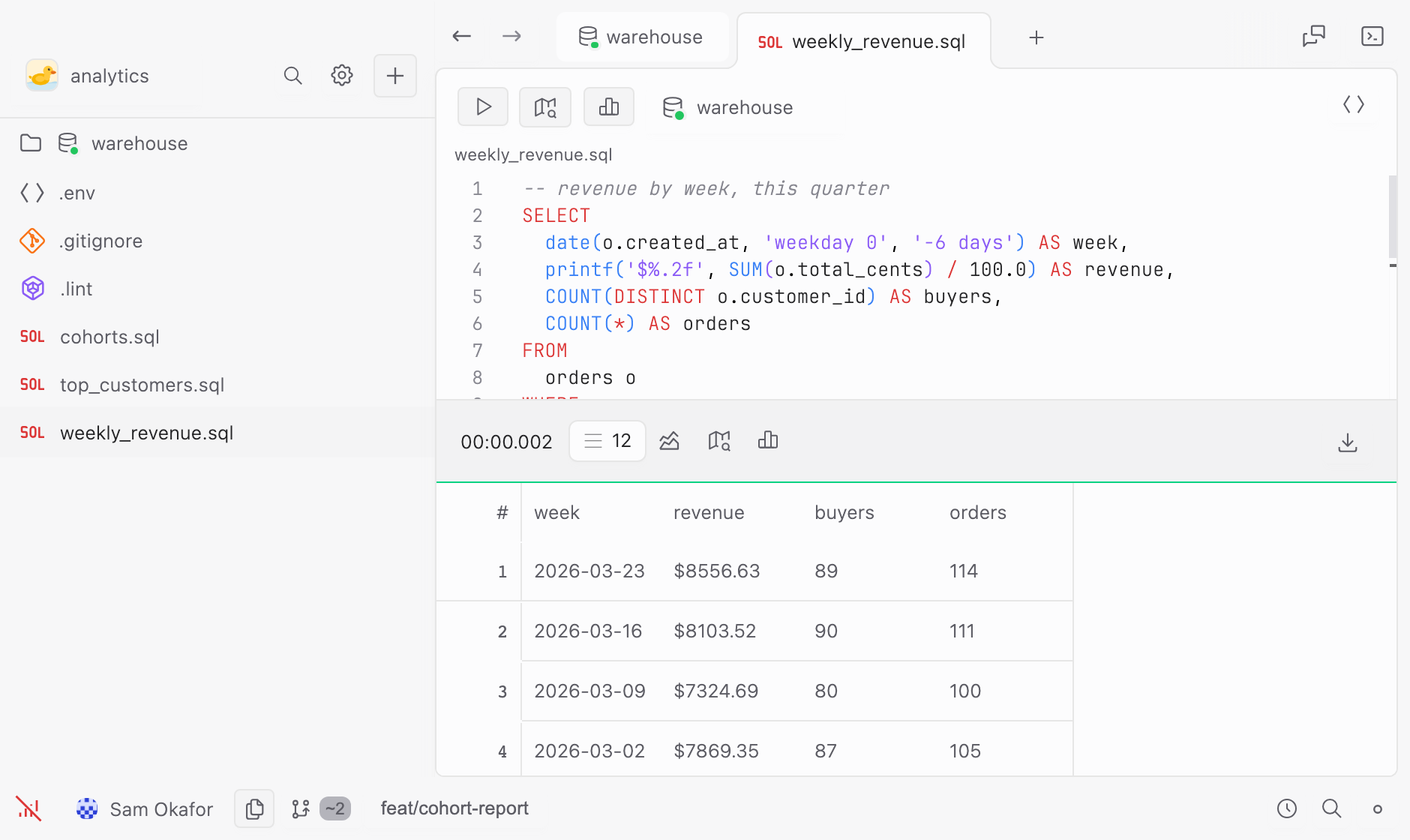


You’re up and running.
Where to go next
- Connecting a Database: SSH tunnels, proxified connections, and schema introspection.
- Git Workspaces: version-control your queries and share them with your team.
- Permissions: granular, per-database access control.
- Query Execution: timeouts, result limits, streaming, and caching.
- SQL Files: file associations, snippets, and editor shortcuts.